Hosting Light Store
Get your store live on Light Hosting in a few minutes.
Light Hosting runs Light Store for you: the server, database and HTTPS certificate are set up and kept running, so there is nothing to install or maintain. The first month is free, then it costs a fixed price of $5 per month, with no hidden fees. All you need is a domain and access to its DNS settings, which is usually wherever you bought the domain or Cloudflare.
The whole process takes about five minutes, plus however long your DNS provider takes to publish the new record.
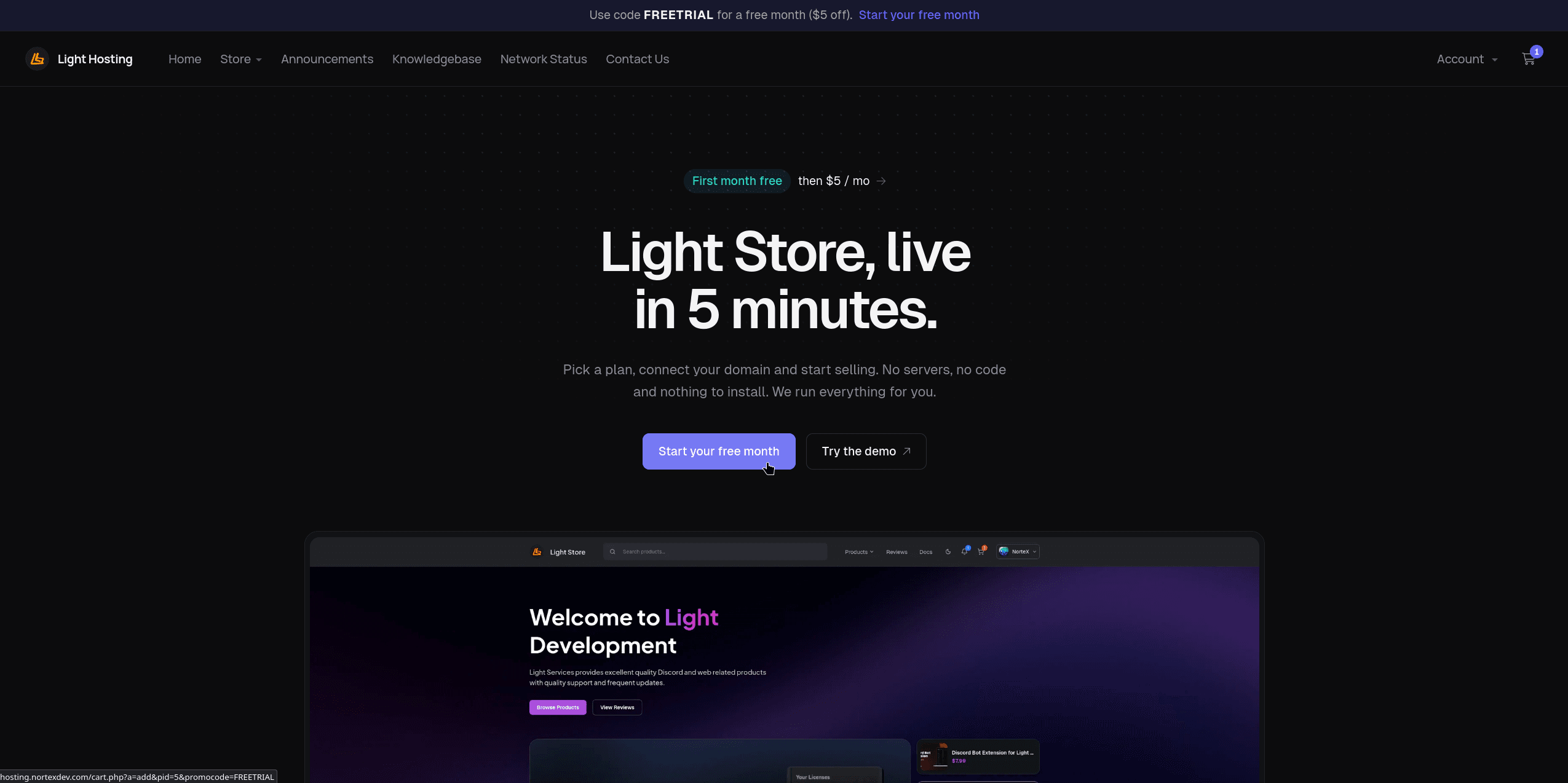
Open Light Hosting and click Start your free month. This adds the Light Store plan to your cart with the free month code already applied.
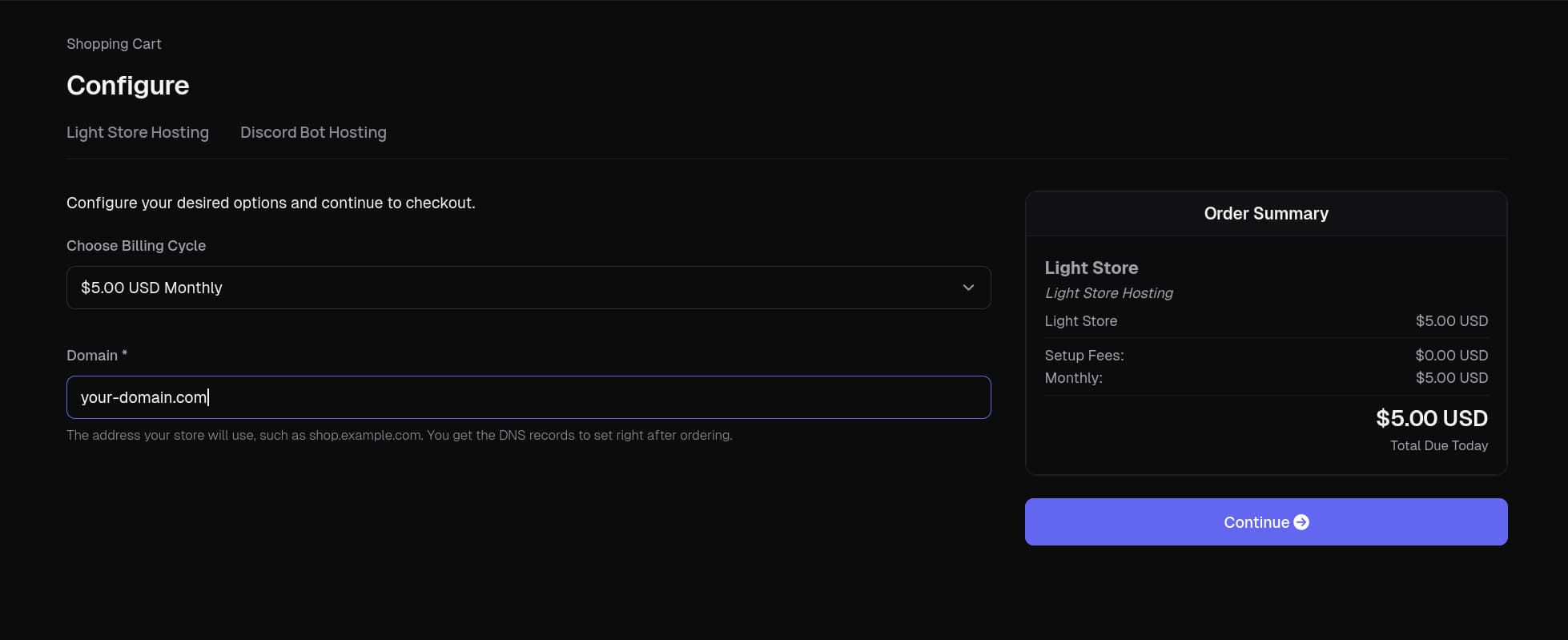
Enter the domain your store will use and click Continue. It can be a root domain like example.com or a subdomain like shop.example.com. A root domain also gets its www. address, which redirects to the main one.
The domain can be changed later from the panel.
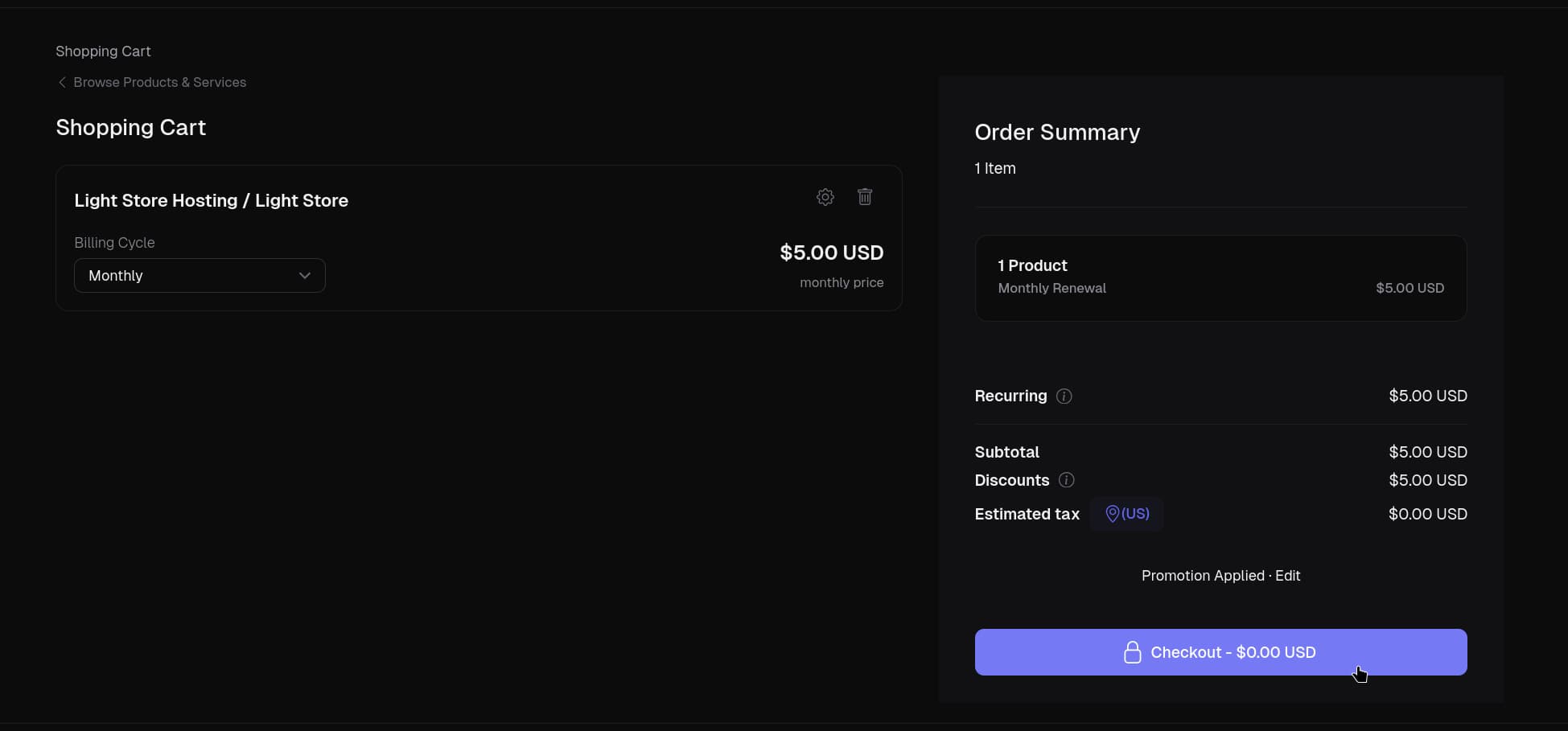
Make sure the free month discount has applied: Discounts should show $5.00 and the button should read Checkout - $0.00 USD. If not, use the code FREETRIAL. Click Checkout.
Log in, or create an account if you don't have one yet. Then link a payment method and complete the order.
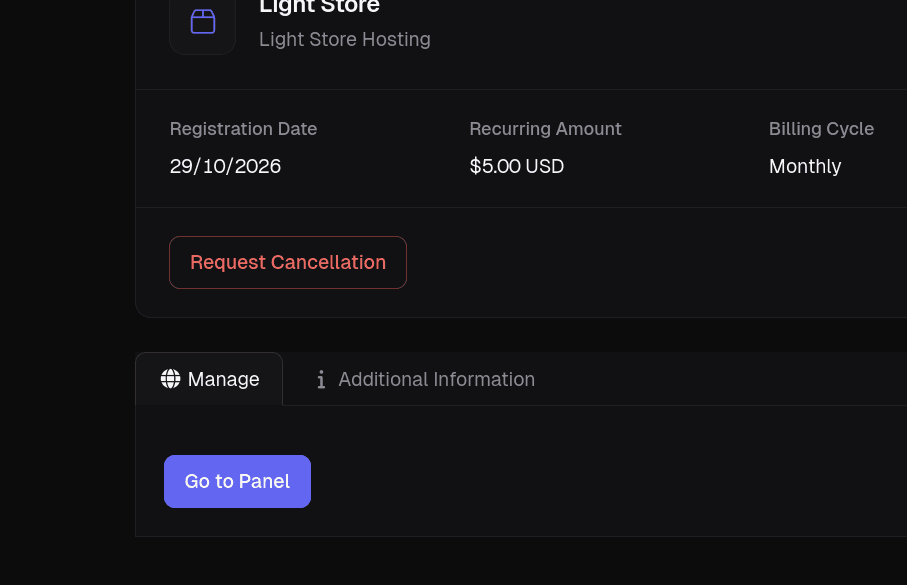
Nothing is charged today. The payment method is used for the monthly renewal once the free month ends. You can cancel any time before that from the service page with Request Cancellation.
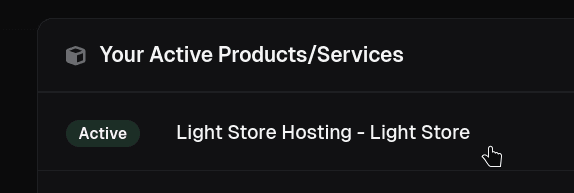
After the order, you land in the client area. Under Your Active Products/Services, select your new Light Store Hosting service.
Click Go to Panel. This opens the control panel of your store's server, where you can see its console, start and restart it, manage backups and set up its domain.
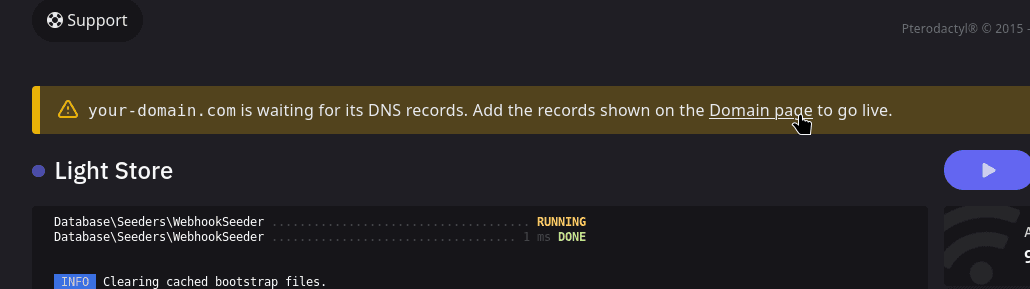
The store is already running, but it is not reachable yet, because your domain does not point to it. The console shows a banner saying the domain is waiting for its DNS records. Click the Domain page link in the banner.
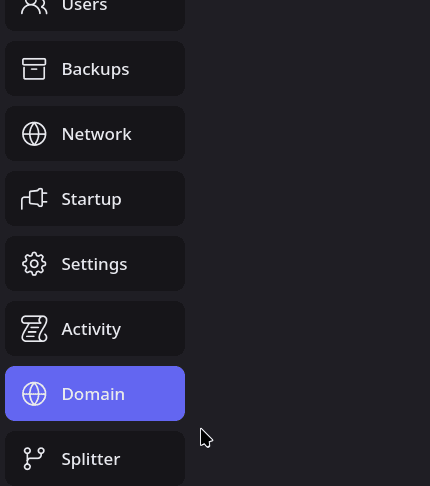
You can also open it any time with Domain in the sidebar.
The Domain page lists the DNS records to create, with their type, name and value. Add each of them at your DNS provider, exactly as shown. The values are specific to your server, so always copy them from the Domain page.
- Root domain (
example.com): anArecord forexample.comand one forwww.example.com, both pointing to the server's IP address. - Subdomain (
shop.example.com): aCNAMErecord pointing to the server's hostname, such asnode3.nortexdev.com.
Where to add records depends on your provider. In Cloudflare, it is DNS, Records, Add record:
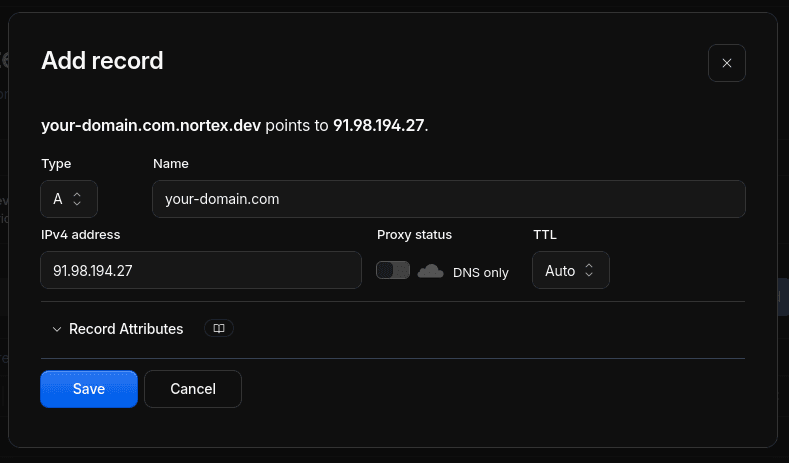
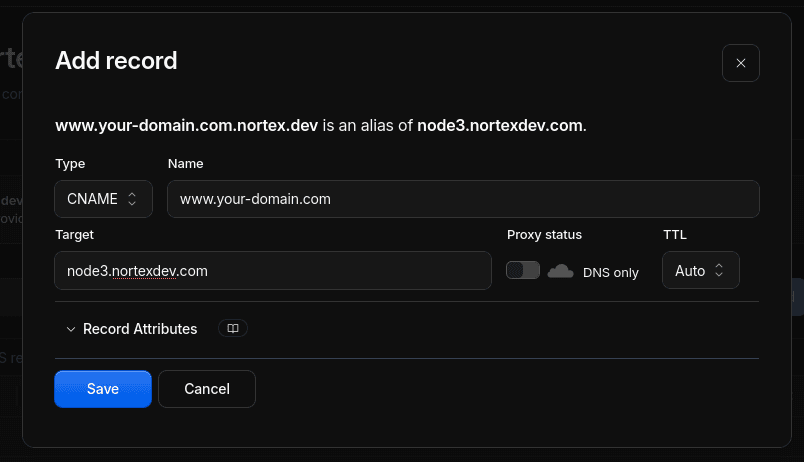
Disable proxying
The records must not be proxied. On Cloudflare, set Proxy status to DNS only (grey cloud). A proxied record points to Cloudflare instead of your server, so the domain is never detected and no HTTPS certificate can be issued.
Wait for the records to be detected. The Domain page checks every minute and shows the status of each record, or you can click Check DNS now. It usually takes a few minutes, but some providers take up to a day.
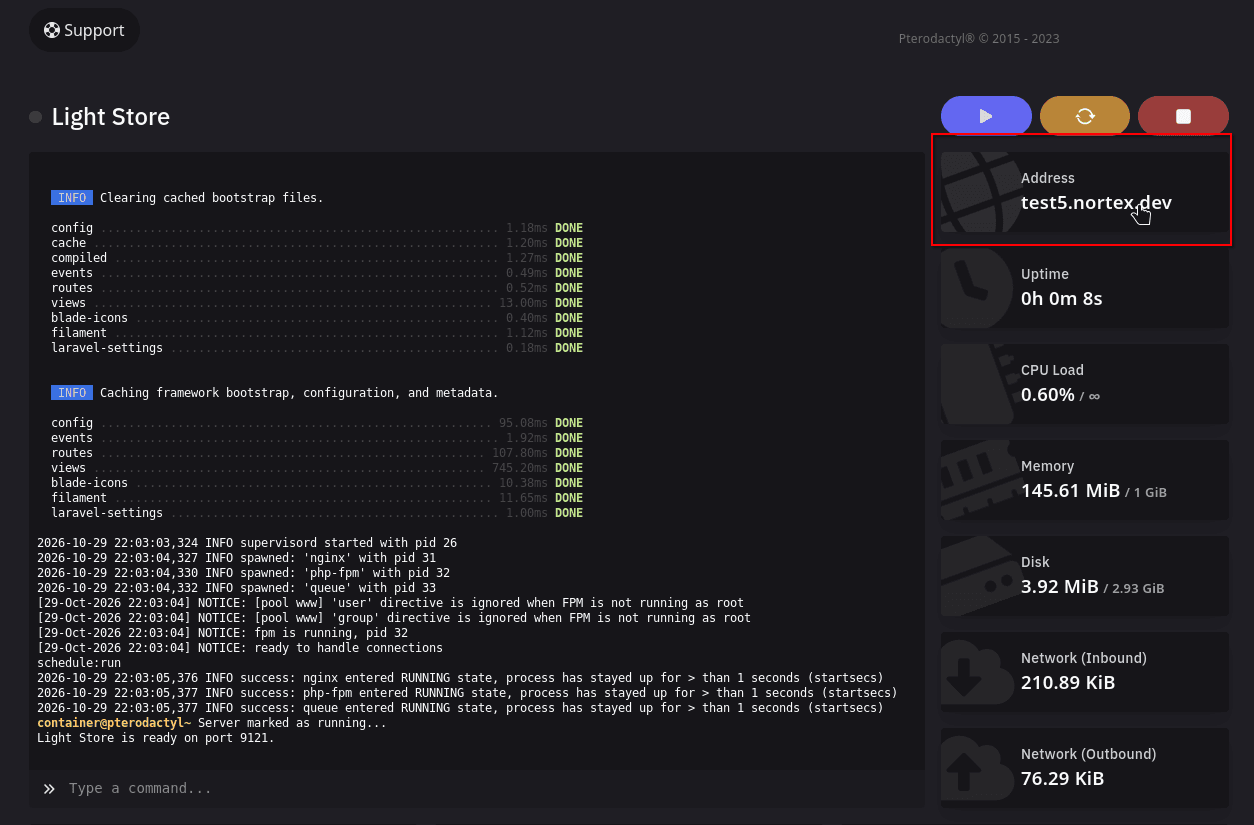
Once the domain is detected, its HTTPS certificate is issued and the server restarts automatically with the new address. The console then shows your domain as the Address. Click it to open your store.
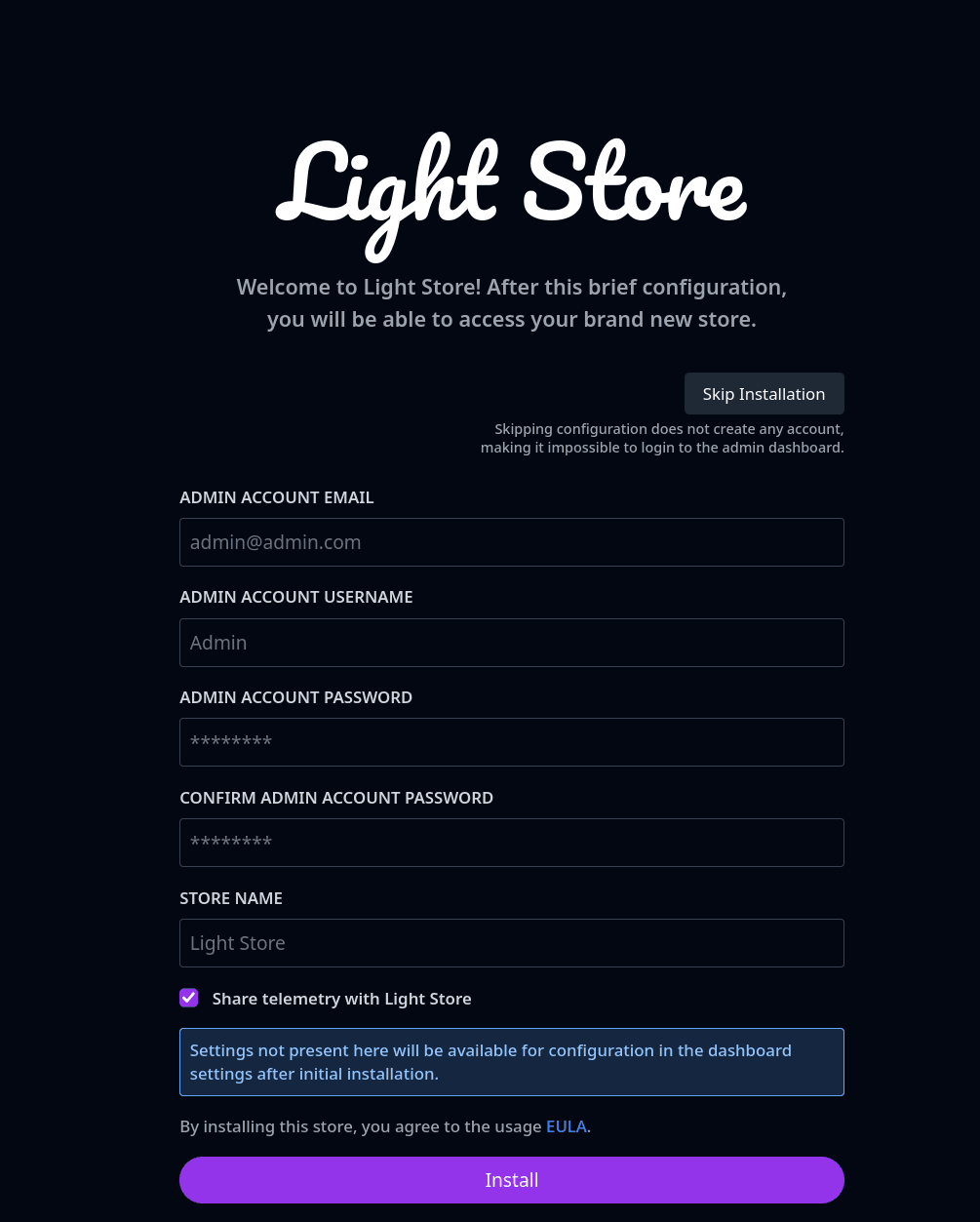
On the first visit, the store asks for its initial configuration. Enter the email, username and password of your admin account and the name of your store, then click Install.
Do not skip this step: skipping creates no admin account, so you would not be able to log in to the dashboard. Everything else can be changed later in the dashboard settings.
Next steps
Your store is live. Log in with the admin account at /admin on your domain to add products and configure the store.
- Settings to brand and configure the store.
- Stripe, PayPal or NOWPayments to accept payments.
- Theming to change how the store looks.